Google Fi
Google Fi and Pixel Satellite SOS Troubleshooting
Comprehensive guide to troubleshooting Google Fi and Pixel Satellite SOS connectivity issues, including activation, support paths, and ensuring a clear sky view.
- Updated
- 2023-10-15
- Reading time
- 8 min
TL;DR
Troubleshoot Google Fi and Pixel Satellite SOS issues by ensuring proper activation, using Google Messages as default, and maintaining a clear sky view.
- Ensure Google Messages is set as the default messaging app for Satellite SOS functionality.
- Verify device compatibility and ensure activation through the correct settings.
- Maintain a clear sky view for successful satellite connection.
Troubleshooting Activation Issues
Device Compatibility and Activation
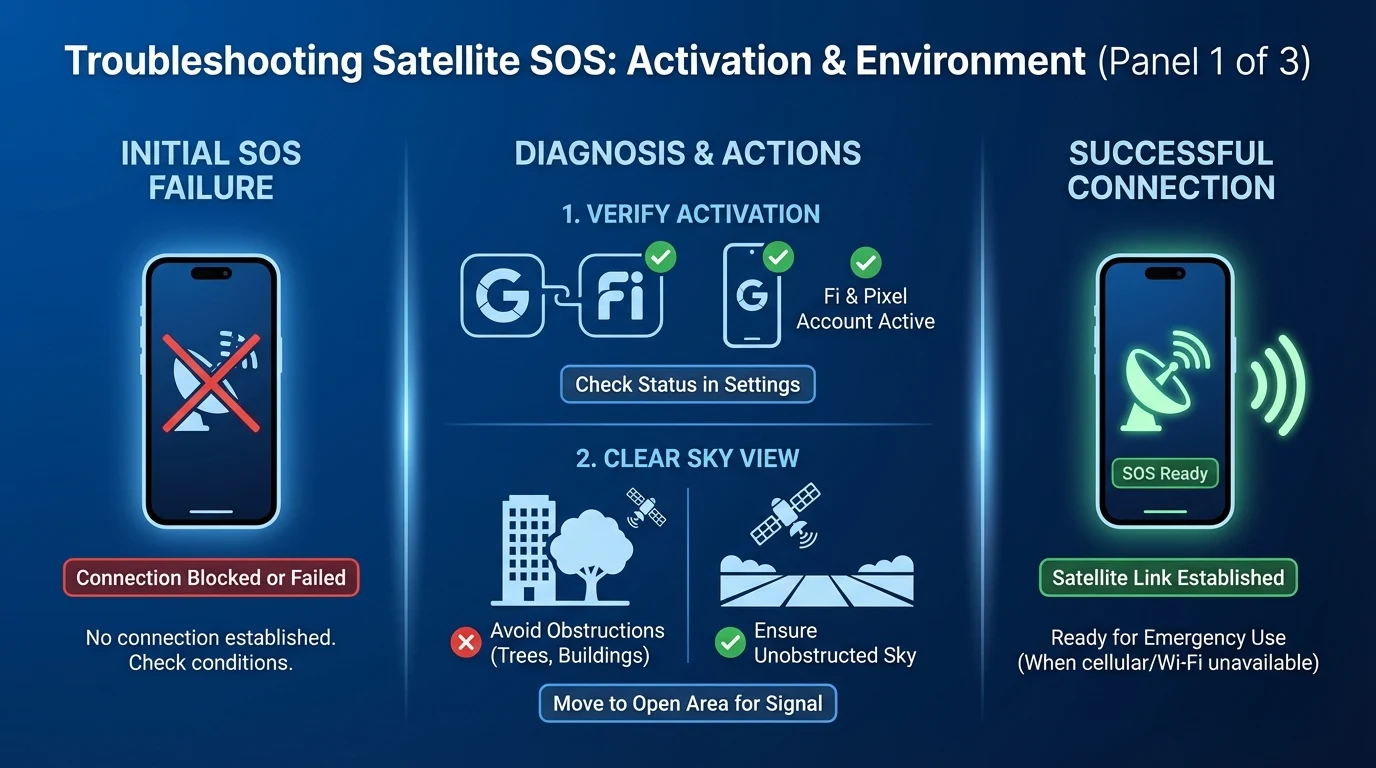
Satellite SOS is available on Pixel 9 and Pixel 10 series devices, excluding the Pixel 9a. To activate the service:
- Ensure Compatibility: Verify your device is supported. Satellite SOS requires the Exynos 5400 modem found in Pixel 9 and 10 series.
- Activate via Settings: Navigate to Settings > Safety & emergency > Satellite SOS and follow the setup instructions.
- Default Messaging App: Set Google Messages as your default messaging app. This is crucial for the service to function.
For more on activation issues, see our guide on Google Fi eSIM Activation Failed Troubleshooting.
Support Paths
If you encounter issues, consider these support options:
- Google Support: Visit Google Pixel Support for official troubleshooting steps.
- Carrier Support: Contact Google Fi support to ensure your plan supports Satellite SOS.
Ensuring a Clear Sky View
Importance of Clear Sky
Satellite SOS requires a direct line of sight to satellites. Obstructions such as trees, buildings, or terrain can block signals. Follow these steps to ensure a clear sky view:
- Move Outdoors: Position yourself in an open area with no overhead obstructions.
- Follow On-Screen Prompts: Align your device as instructed to establish a connection.
- Maintain Position: Hold your device steady until the connection is confirmed.
For more detailed positioning tips, refer to Google Fi Satellite SOS Clear Sky.
Common Obstructions
- Natural: Trees, hills, and dense foliage.
- Man-Made: Buildings and urban structures.
If you experience connectivity issues, try relocating to a different area with a clearer view of the sky.
Disclaimer
This article is intended for informational purposes only. Always verify device compatibility and service availability with official sources. For the latest updates and support, consult Google Pixel Support and your carrier's customer service.
Visual summary
FAQ
Short answers; details are in the article above.
- Satellite SOS is supported on Pixel 9 and Pixel 10 series devices, excluding Pixel 9a.
- Google Messages integrates satellite messaging protocols necessary for Satellite SOS functionality.