Troubleshooting
Troubleshooting Cricket Wireless Service Issues in 2026
Guide for Cricket Wireless users facing service issues like no service, slow data, or activation problems. Covers device compatibility, network settings, and data deprioritization.
- Updated
- 2026-04-22
- Reading time
- 12 min
TL;DR
Troubleshoot Cricket Wireless issues by checking device compatibility, resetting network settings, and understanding deprioritization during congestion.
- Verify device compatibility and network settings for activation issues.
- Understand deprioritization impacts on data speeds during congestion.
- Use Cricket's coverage map to assess local service availability.
- Consider plan features and limitations for optimal performance.
Troubleshooting No Service and Activation Issues
Device Compatibility and Network Settings
-
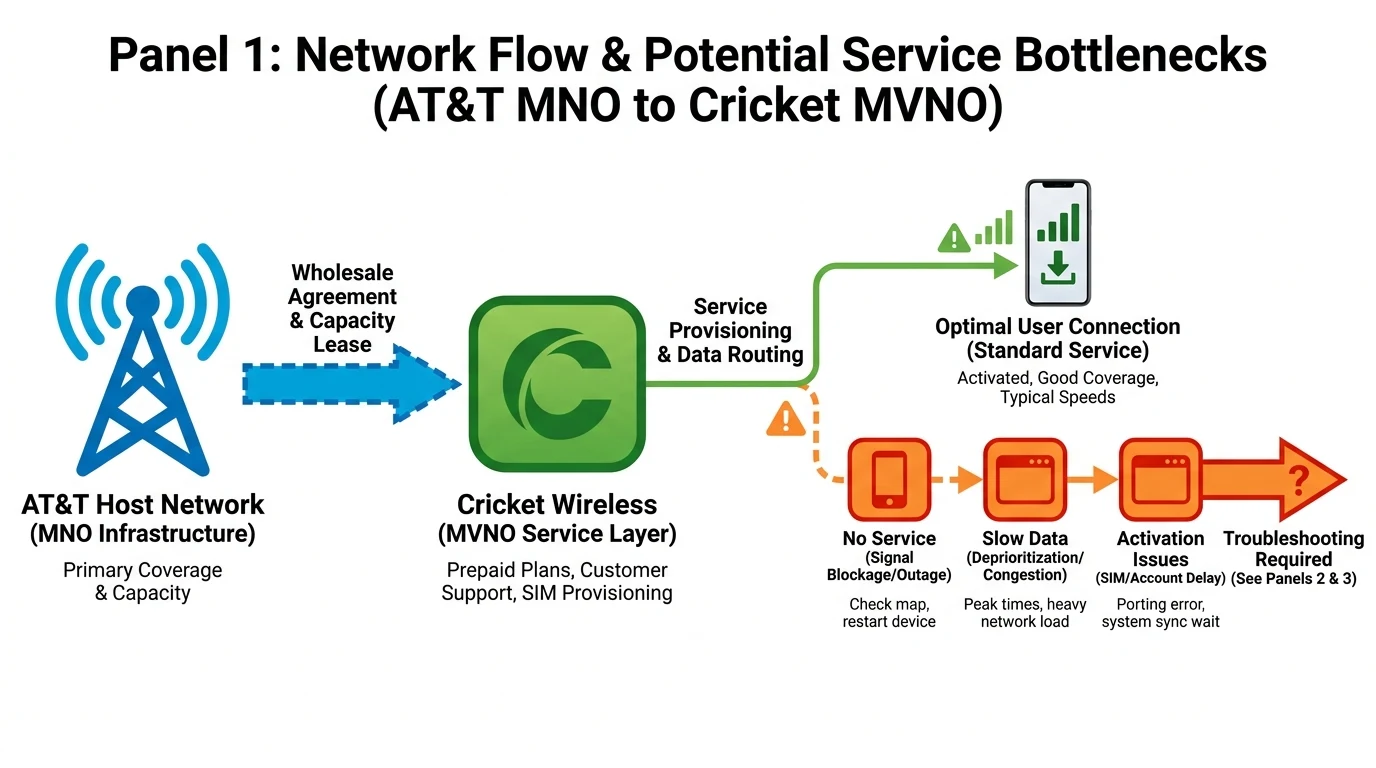
Verify Device Compatibility: Ensure your device is compatible with Cricket's network by using the Cricket Compatibility Checker. Unlocked devices that support AT&T's bands are typically compatible.
-
Network Reset: If experiencing no service, try resetting your network settings. For iOS, go to Settings > General > Reset > Reset Network Settings. For Android, navigate to Settings > System > Reset Options > Reset Wi-Fi, mobile & Bluetooth.
-
eSIM Activation: For eSIM users, ensure the eSIM is correctly installed. On iOS, go to Settings > Cellular > Add eSIM. On Android, go to Settings > Network & Internet > Add Mobile Plan.
-
Coverage Verification: Use the Cricket Coverage Map to verify service availability in your area. Coverage may vary indoors due to building materials affecting signal strength.
For more detailed steps on eSIM activation, refer to our guide on Google Fi eSIM Activation Failed Troubleshooting.
Addressing Slow Data Speeds
Understanding Deprioritization
Cricket Wireless, like many MVNOs, may deprioritize data during network congestion. This means your data speeds could slow down if the network is busy, especially on unlimited plans. This is a common practice among prepaid carriers using AT&T's network.
-
Plan Impact: Unlimited plans are subject to deprioritization, which can result in slower speeds during peak times. Consider switching to a plan with higher priority if consistent high-speed data is crucial.
-
Network Management: Cricket uses QCI (Quality of Service Class Identifier) levels to manage data traffic. For more insights on how this affects your service, see our article on MVNO QCI Levels and Data Deprioritization Explained.
Troubleshooting Steps
-
Test Data Speeds: Use the myCricket app to run diagnostics and test your current data speeds.
-
Switch to 4G LTE: If 5G is unavailable or slow, switch your device settings to prioritize 4G LTE, which may offer more consistent speeds in some areas.
-
Plan adjustment: If slowdowns match busy-tower hours, compare Cricket’s current unlimited tiers and disclosures on Cricket’s plans pages—higher tiers sometimes advertise different network management language than entry unlimited.
For a comparison of network philosophies and how they affect service, check out our guide on Mint Mobile vs. Visible 2026.
Coverage and band considerations
Cricket uses AT&T’s network; device band support and local tower layout still determine whether you get LTE vs 5G and how strong indoor signal is.
- BYOD first: Confirm compatibility with Cricket’s checker and your phone’s official tech specs (LTE/5G bands).
- Indoor vs outdoor: If service works outside but not inside, try WiFi Calling (when available on your plan/device) and reduce causes of interference (thick walls, metal framing).
- Optional mapping: Community tools (for example CellMapper) can hint at what neighbors see, but treat them as hints—not proof of your exact experience.
Disclaimer
This article provides general troubleshooting steps for Cricket Wireless customers. For specific issues or persistent problems, please contact Cricket Wireless support directly. Coverage and service quality may vary based on location and device compatibility. Always verify plan details and compatibility on the official Cricket Wireless website.
Visual summary
FAQ
Short answers; details are in the article above.
- Ensure your device is compatible and unlocked. Reset network settings and try activating again. If issues persist, contact Cricket support.
- Test speeds during non-peak hours, switch to 4G LTE, and consider upgrading to a plan with less deprioritization.